Web-based · Multi-location · Cloud or on-premises

Calm queues. Clear counters. Live insight.

manageQ is one web platform for kiosks, phones, counters, voice displays and live dashboards. Built for hospitals, visa centres, banks and service centres, in any time zone.
  • Runs in Chrome or Edge
  • No app for visitors
  • Uses touch PCs, tablets and TVs you choose
  • Touch kiosk + printed ticket
  • eQueue on any phone
  • Token display with voice
  • Admin console and live dashboards
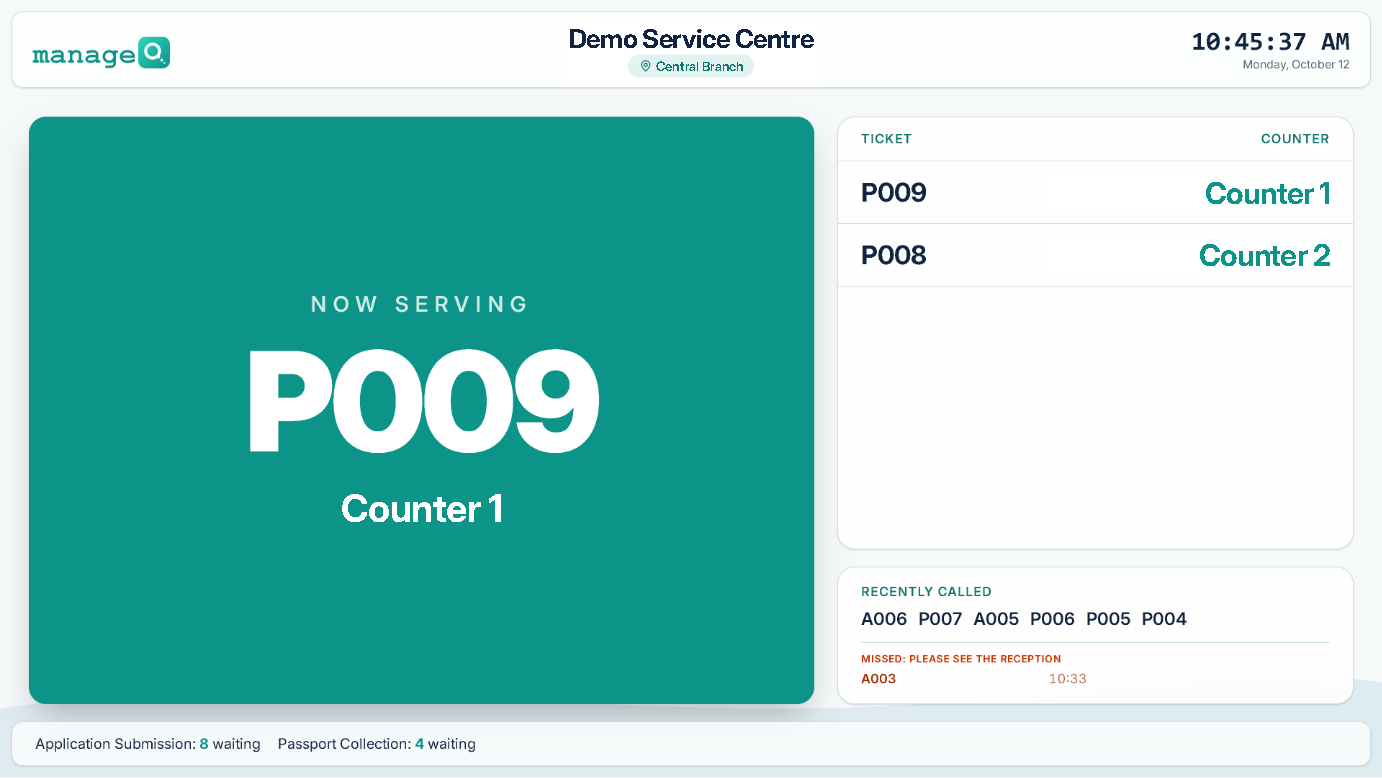
Token display: now serving P009 at Counter 1, with the tokens called before it
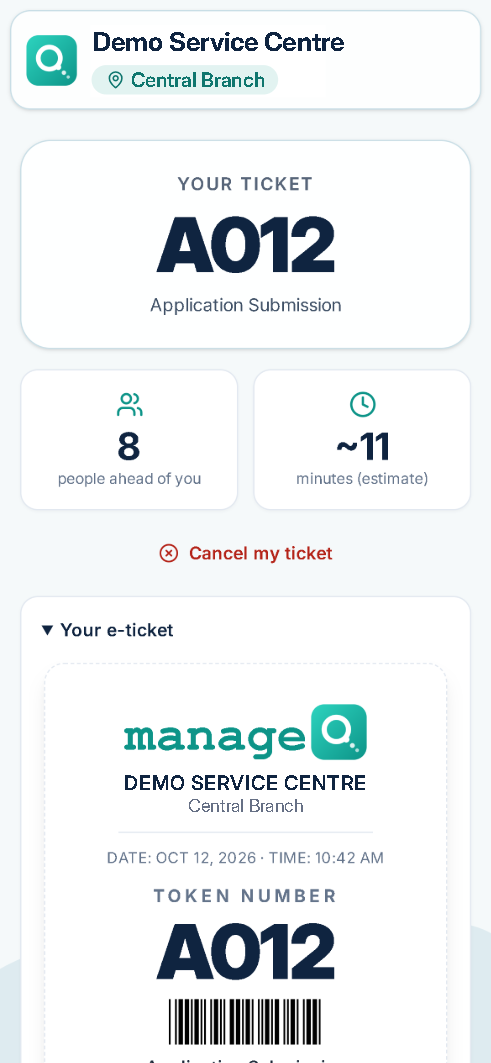
Phone ticket: 8 people ahead, about 11 minutes (estimate)
  • Kiosk
  • Phone eQueue
  • Voice displays
  • Live dashboards
  • Join by kiosk, QR code or at the counter
  • Customer screens and voice in 6 languages
  • Visitor details encrypted, deleted after service
  • Every change on record
  • Cloud or on-premises
[PH: client logos: real, attributed logos with written permission only]
The queue problem

Queues differ by industry. The problems are the same.

Clinics, banks, visa centres and public offices share the same pain: crowded halls, unknown waits and no live view. manageQ replaces it with one fair, visible and measurable flow.

For visitors

  • Crowded halls and long standing lines
  • No idea how long the wait will be
  • Missed calls after stepping away
  • Names called out in a public hall

For counter staff

  • Disputes over who came first
  • No-shows that block counters
  • Yesterday’s tokens still open
  • No fair rule for urgent cases

For managers

  • No live view of queues or counters
  • No reliable wait and service times
  • Blind spots across branches
  • No record of who changed what

One connected flow, from the door to the counter to the report.

Kiosks, phones, counters, screens and dashboards share one live queue, run by your rules.

  • Fair, rule-driven order
  • Live view of every queue
  • Automation, not paperwork
  • Browser-based, no special hardware
The visitor journey

Nobody has to guess where they stand

Your place is kept. Your wait is shown. Your turn finds you.

  1. Step 1: Join

    Pick a language and a service, fill in a short form, tick "Send me updates" if you want messages.

  2. Step 2: Track

    The live ticket shows the people ahead and an estimate in minutes. Cancel from the phone if plans change.

  3. Step 3: Almost there

    "Almost your turn" on the page, plus SMS, WhatsApp or e-mail when 1–20 people are ahead.

  4. Step 4: Your turn

    "Please go to Counter 3". The phone vibrates (Android); the display chimes and announces the token.

  5. Step 5: Rate

    1–5 stars, tags and a comment. Optional, switched on per organisation.

See the full journey

Touchpoints

Every touchpoint, one live queue

Kiosks, phones, counters, displays and dashboards work on the same live queue, so every screen agrees.

Kiosk

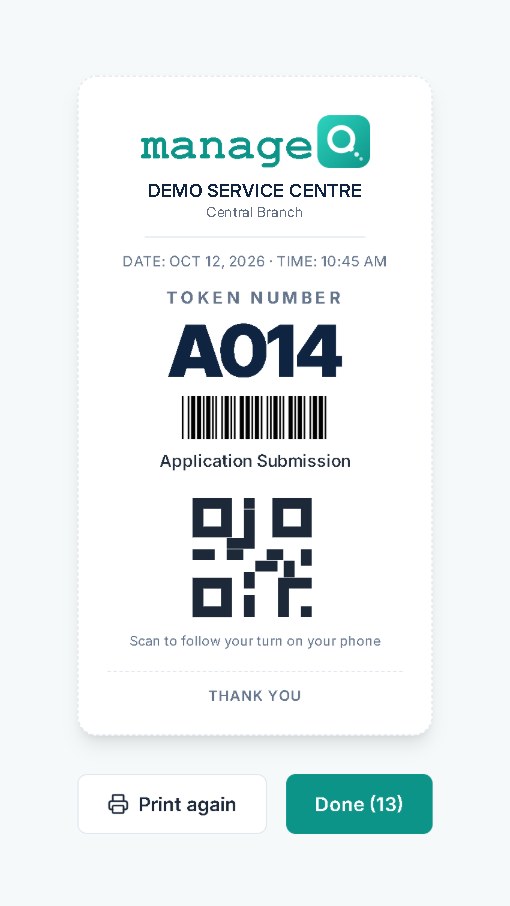
Kiosk screen after a tap: token A014 for Application Submission, with a barcode, a QR code and Print again

Any touch PC or tablet becomes a ticket kiosk.

  • Service menus up to 3 levels
  • One-tap tokens, or a short form when the service needs one
  • Silent ticket printing, with a QR code to follow the turn
  • Language buttons, each in its own script
  • “I have an appointment” check-in with the booking reference
More about the kiosk

Phone eQueue

Phone ticket A012: 8 people ahead, about 11 minutes (estimate), with Cancel my ticket

Visitors join from a QR poster or a link. There is no app to install.

  • Join by QR code or link from any phone
  • People ahead and an estimate in minutes
  • “Almost your turn” on the page, before the call
  • The counter is shown when called; the phone vibrates (Android)
  • Cancel from the phone if plans change
More about phone eQueue

Displays & signage

Token display: now serving P009 at Counter 1, the next tokens, recently called and a missed token

Any TV with a small PC calls tokens with a chime and a voice.

  • Voice announcements in 6 languages
  • Standard or Hospital (token-only) layout
  • Missed tokens listed while they can still be called
  • Image and video playlists in a panel or full screen between calls
  • A call brings the queue back at once
More about displays and signage

Counter console

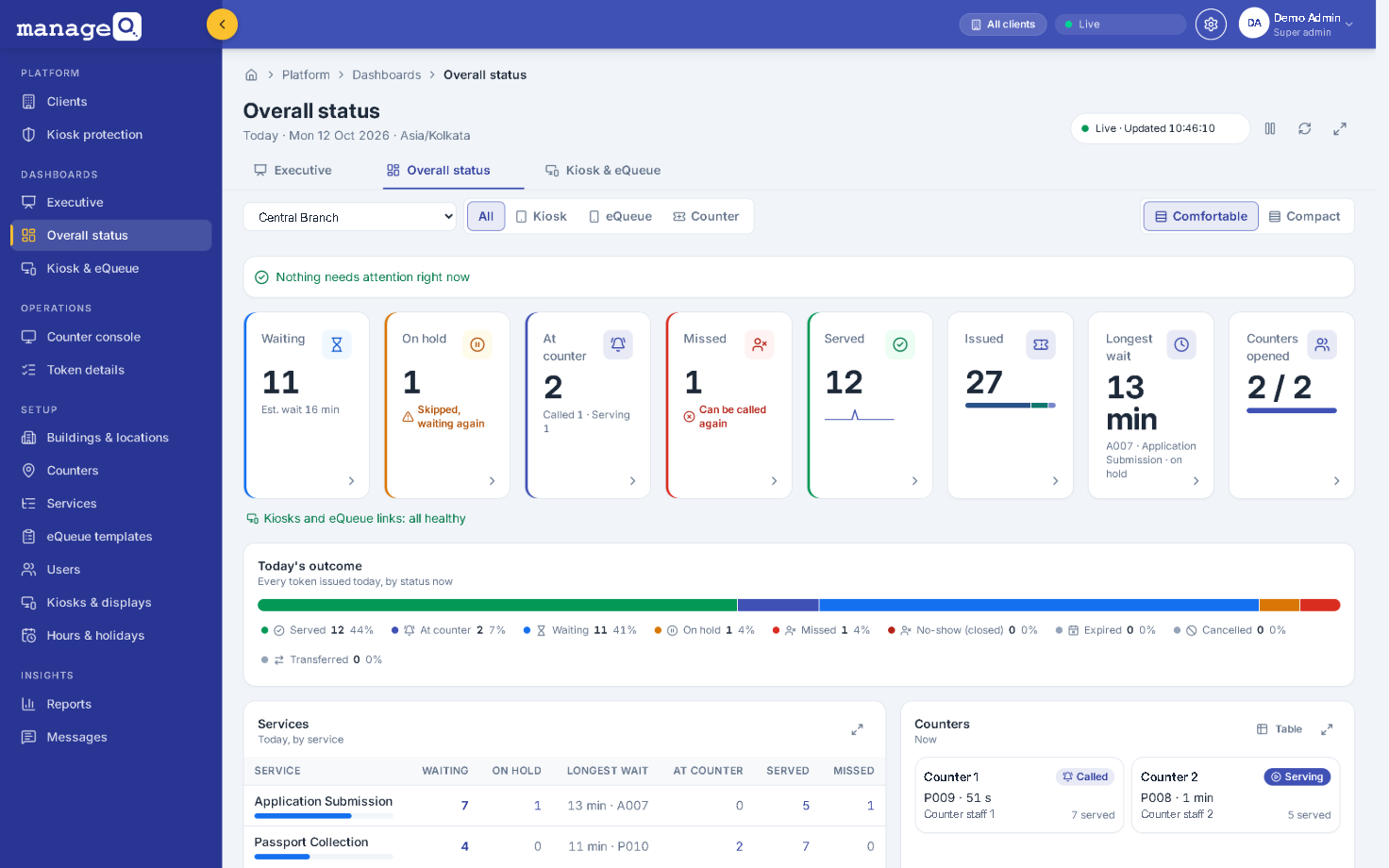
Illustration of the counter console with demo data.

Staff call, serve and hand over tokens from any PC, laptop or tablet.
  • Call next, or call a chosen token
  • Recall, skip, complete or mark a no-show
  • Transfer to another service, keeping the number
  • Pause with a reason, and resume when back
  • Priority tokens called first, by your rules
More about the counter console

Dashboards

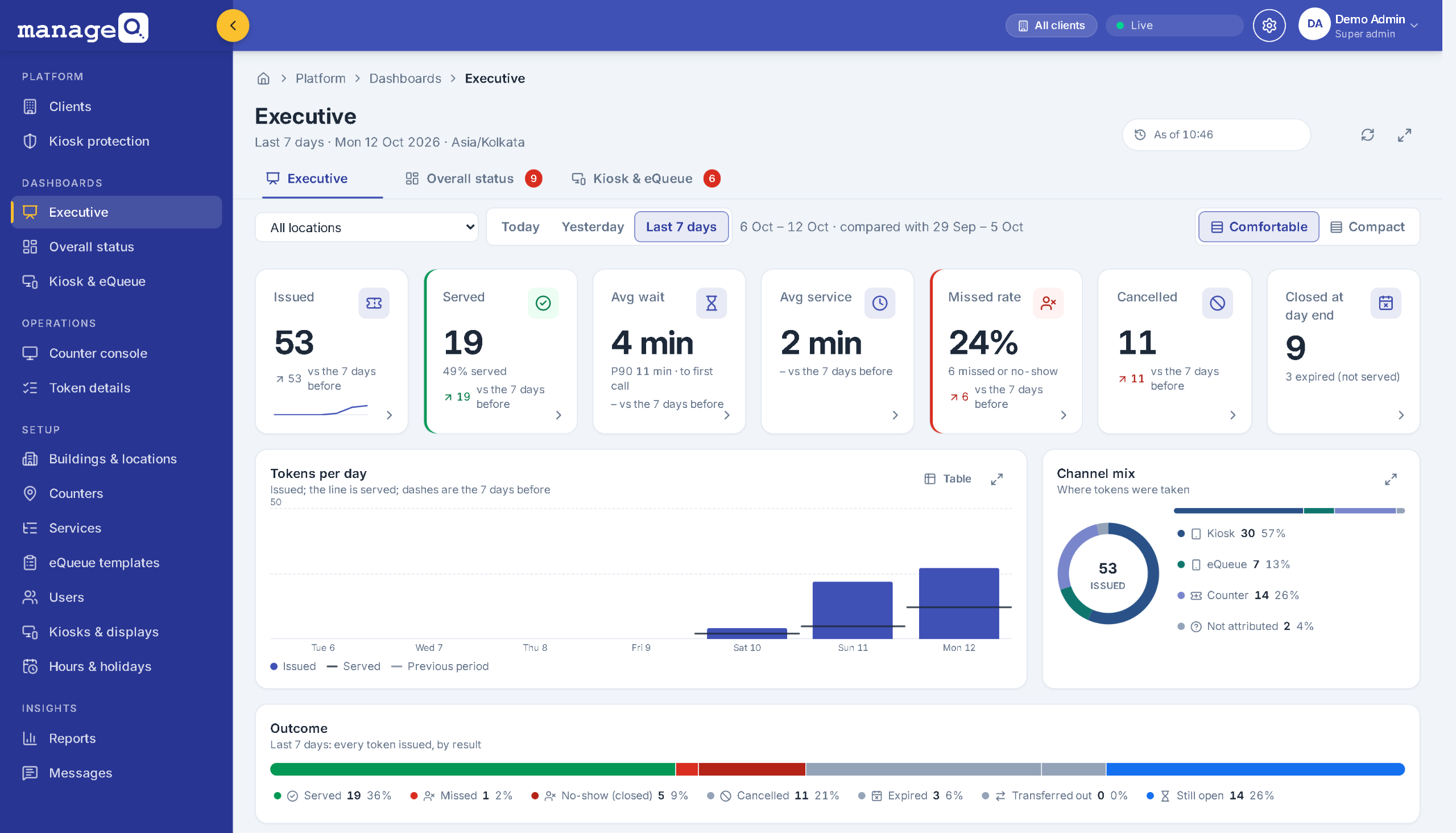
Executive dashboard for the last 7 days: tokens issued and served, average wait and service time, missed rate, tokens per day and channel mix

Managers see every queue live, at one branch or many.

  • Executive, Overall status and Kiosk & eQueue dashboards
  • Live every 15 s, plus instant updates
  • Every number opens the tokens behind it
  • Average wait with P90, against the previous period
  • Wall-screen view and CSV export
More about dashboards and reports

AI assistant

A question and an answer with a bar chart, as in the in-app assistant

Ask in plain words. It answers from the guides and your live figures.

  • Answers how-to questions from the manageQ guides
  • Looks up live figures within your own permissions
  • Draws simple charts, each with a table view
  • Prepares a change as a form that runs only when you confirm
More about the AI assistant
Features

Configured in the console, not coded

Services, rules, forms, screens and messages are settings your admins change, at one location or all of them.

AI assistant

Ask in plain words. Nothing changes until you confirm.

An in-app assistant for admins and staff, switched on per organisation.

What it does

  • Answers how-to questions from the manageQ guides
  • Looks up live figures and reports within your own permissions
  • Draws simple charts, each with a table view

Guardrails

  • A change is prepared as a form and runs only after you confirm it
  • Names, mobile numbers, e-mails and ID numbers are replaced before any model call
  • Changes made this way are marked “via assistant” in the audit log

Each organisation is set to Off, the built-in assistant (rule-based, no model cost, the default) or an optional Azure AI model, which only the platform administrator can switch on.

Illustration with demo data.

Industries

One platform, configured for your sector

Start from a ready-made service set, then change anything: services, prefixes, forms and rules.

Hospitals & clinics

Crowded OPD halls, many rooms and steps, and patients who should never hear their names called out.

How manageQ fits

  • Healthcare service set with “Room” wording
  • Displays call token numbers, never names
  • Priority groups for emergencies, people with a disability and senior citizens
  • Billing, sample and report steps; a transfer keeps the token number

Visa & passport centres

Fixed appointment slots, long document checks, and people taking more tokens than they need.

How manageQ fits

  • Appointment check-in, with on-time visitors placed by their slot
  • Passport fields and applicant count on the token
  • A “Please bring” document checklist per service
  • A Biometrics step as its own queue, keeping the token number

Banks & insurance

Tellers, loans and claims in one hall, priority customers, and no live view across branches.

How manageQ fits

  • Teller, loan and claims queues
  • Priority desks and the bank rule preset
  • Mobile numbers masked on tickets
  • Staff limited to their own branches

Service centres

Quick jobs stuck behind complex ones, crowded waiting areas, and no idea how customers felt.

How manageQ fits

  • Quick and complex jobs in separate queues
  • WhatsApp “turn is near” messages through your messaging provider
  • Branded screens and signage playlists between calls
  • QR joining from a poster

More industries

Any service business with walk-in visitors. Start from one of 6 ready-made service sets, or build your own.

  • Labs & diagnostics
  • Government offices
  • Embassies & consulates
  • Universities & schools
  • Telecom & utilities
  • Transport & licensing
  • Courts & city services
  • Hospitality & events
  • Automotive service
  • Customer-service desks
Product facts

manageQ in numbers

ways to join, plus appointment check-in
3
customer-screen and voice languages
6
ready-made industry service sets
6
dashboard refresh, plus instant updates
15 s
message events on SMS, WhatsApp and e-mail
4
open tokens per mobile number, as you set
1–10

Product facts, not customer results.

[PH: customer results: real, attributable figures only]
Security & deployment

Secure by design. Ready for anywhere.

Privacy and audit are built into every screen, and manageQ runs in the cloud or on your own servers.

Access & identity

  • Admin, staff and custom roles
  • Lock after 3 failed sign-ins, plus rate limits
  • Sessions of 1–24 h, with optional idle sign-out

Privacy by design

  • Visitor details encrypted (AES-256-GCM) and deleted after service
  • No personal data on dashboards or displays
  • Personal data replaced before any AI model call

Audit & accountability

  • Every change recorded: who, what and when
  • Every view of visitor details
  • Audit-log explorer with CSV export

Platform & device hardening

  • Cloud: HTTPS only, TLS 1.2+
  • A secret link per kiosk or display, stored hashed
  • Automated tests and dependency audits on every change
Five layers of protection: network, access, data, devices and audit NetworkHTTPS, TLS 1.2+ (cloud) AccessRoles, per-request checks DataAES-256-GCM, auto-delete DevicesSecret links, protection AuditWho did what and when
  • Cloud

    The Microsoft Azure reference set-up.

  • On-premises or private cloud

    Docker on your own servers, in your country.

  • Classic server

    A Windows or Linux install with PostgreSQL 13+.

“Cloud” items describe the Azure set-up; on-premises protection also depends on your network. Security and privacy in detail

Plans

Start with a pilot, then run it your way

Every plan is quoted for your locations and set-up.

Pilot

Prove it at one location before you roll out.

Custom quoteQuoted for one location

  • One location, with your own services and rules
  • Guided set-up
  • Agreed success measures
  • Guides for every role
[PH: pilot duration]

Cloud

Hosted on Microsoft Azure.

Custom quoteQuoted for your locations and devices

  • Any number of locations
  • Updates included
  • Kiosks, displays and counters in Chrome or Edge
[PH: confirm the hosted offer and region; production hosting is not live yet]

On-premises / private cloud

Your servers and your country.

Custom quoteQuoted for your installation and support

  • Docker or a classic install
  • PostgreSQL 13+
  • Integration support
FAQ

Questions, answered

The questions teams ask before a demo.

Do visitors need an app?

No. Visitors take a token at a kiosk, scan a QR code or open a link on their own phone, or get one at the counter. The phone page runs in the browser, so there is nothing to install.

On their phone, visitors see their token, how many people are ahead and an estimated wait in minutes, and they can cancel if their plans change. See the visitor journey.

What hardware do we need?

Devices you choose. manageQ runs in Chrome or Edge, so there is no special hardware:

  • Kiosk: any touch PC or tablet, plus a receipt printer if you want printed tickets (printing is silent, with a QR code on the ticket).
  • Display: any TV or monitor with a small PC.
  • Counters: any PC, laptop or tablet with a browser.
  • Visitors: their own phones.

A launcher for Windows or Linux opens a kiosk or display in full screen, and can start it automatically when the PC starts. The server runs in the cloud or on your premises.

Which languages are supported?

Customer screens (kiosk, phone page, ticket status page and feedback kiosk) and voice announcements work in 6 languages: English, Hindi, Telugu, Tamil, Arabic (right to left) and Russian. Each organisation chooses which of them to offer, and a display can show its labels in one language or two.

  • Announcements use the voices installed on the display PC, so Hindi, Telugu or Tamil voices must be added in the operating system first.
  • Your admins translate their own texts, such as service names, form labels and instructions.
  • The admin console is in English, and the built-in assistant answers in English.

Cloud or on-premises?

Either. It is the same application in both cases:

  • Cloud: a Microsoft Azure reference set-up, served over HTTPS only (TLS 1.2 or newer), with platform secrets kept in Azure Key Vault.
  • On-premises or private cloud: Docker, or a classic install on a Windows or Linux server, on your network and in your country.

Both use PostgreSQL 13 or newer. Upgrades are additive and applied when the server starts, with a documented way back. Read about security and deployment.

Where is visitor data stored, and when is it deleted?

Visitor details, such as a name, mobile number, e-mail or form answers, are stored encrypted (AES-256-GCM) in the database of your manageQ installation: on your own servers when you host it yourself, or in the cloud set-up agreed with you.

  • They are deleted when the token is served, or when it closes at day end.
  • Details that come with an appointment are deleted after the appointment day (the next day, unless the location keeps them longer); the booking itself stays for reports, without them.
  • Dashboards and displays never show personal data, and mobile numbers are masked on tickets.
  • Every view of a visitor's details is recorded in the audit log.

How does a pilot work?

  1. Discovery call: your locations, services, counters and screens.
  2. Live demo with your set-up: manageQ configured with your own services.
  3. Pilot at one location: real visitors and staff, guided set-up and success measures agreed in advance.
  4. Roll out: more locations, with guides for every role.

The length of the pilot is agreed with you. Book a demo to start with the first step.

[PH: testimonials: real, named quotes with written approval only]

See manageQ with your own queues

  1. Discovery call
  2. Live demo with your set-up
  3. Pilot at one location
  4. Roll out with guides for every role
Book a demo