Everything a queue needs, on one web platform

Kiosks, phones, counters, displays and dashboards, configured in the console, not coded.

Visitor side

Join by kiosk, QR code, at the counter or by appointment

Every way in issues a numbered token in the same live queue.

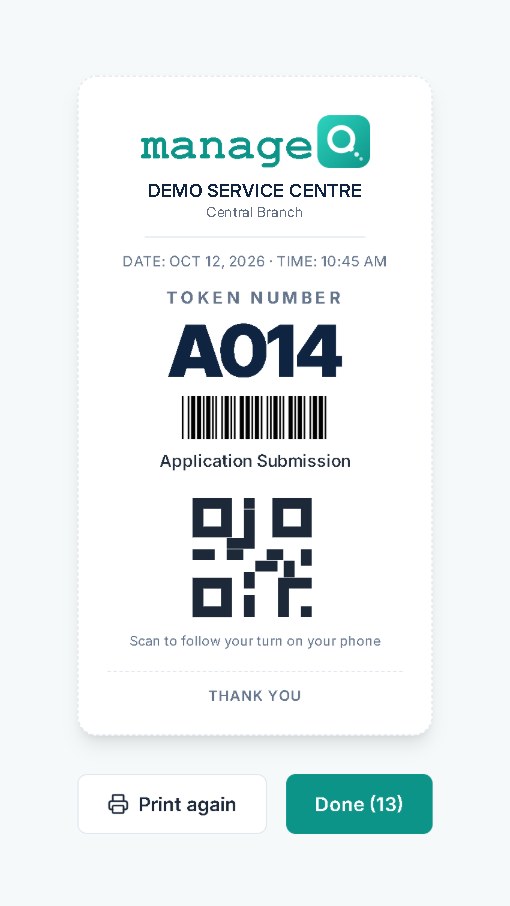
Kiosk screen after a tap: token A014 for Application Submission, with a barcode and a QR code

Kiosk

  • Any touch PC or tablet, in Chrome or Edge
  • Service menus up to 3 levels, with one-tap tokens
  • A short form only where the service needs one
  • Silent ticket printing with a QR code to follow the turn
  • “I have an appointment” check-in with the booking reference
  • Typed details cleared when nobody is at the screen
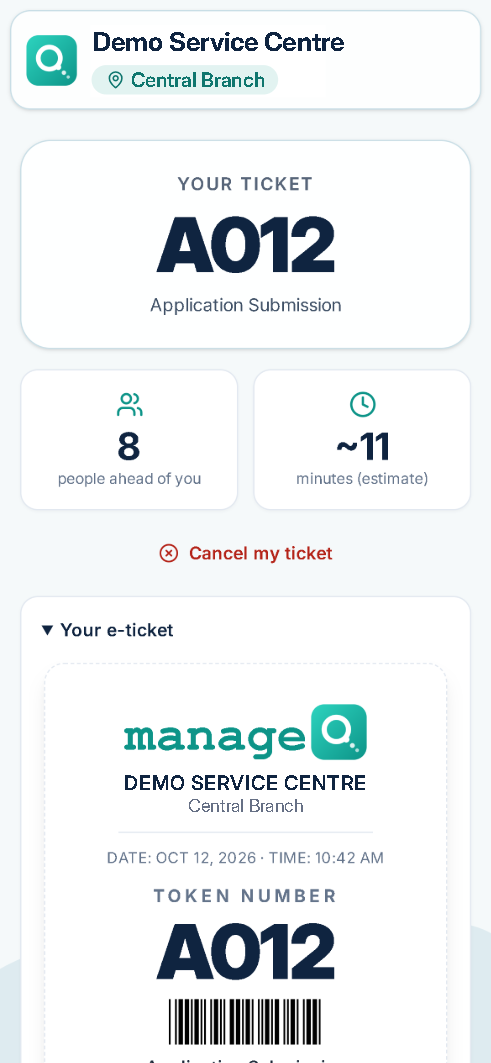
Phone ticket: 8 people ahead, about 11 minutes (estimate), with Cancel my ticket

Phone eQueue

  • Join from a QR poster or a link, with no app
  • People ahead and an estimated wait in minutes
  • “Almost your turn” on the page before the call
  • The counter shown when called; the phone vibrates (Android)
  • Cancel from the phone if plans change
  • A printable QR poster for every link

Services, tokens & forms

  • Up to 3 service levels, with ready-made sets for 6 industries
  • Your own prefix per service (A001, L014), restarting at 001 every day
  • A no-code form builder with 10 field types and phone, e-mail and passport checks
  • Printed ticket or e-ticket, each with a QR code
  • Counter staff can issue a token for a visitor at the desk
  • The number of applications can be part of the token
Queue rules

Missed tokens and priority, handled by rule

Each location decides what happens when a visitor misses the call, and who goes first.

  • Call a missed token again within 5–480 min
  • Back to its original place, or to the end of the queue
  • Automatic no-show 2–60 min after a call
  • An optional limit of 1–10 skips per token
  • Presets for standard, bank and visa centre rules
  • Rules per location, with defaults for the whole organisation

Priority groups

  • Emergency, Person with disability and Senior citizen to start with
  • 3 priority levels, up to 8 groups, with a fairness rule
  • The fairness rule calls a normal token after a set number of priority tokens in a row
  • Visitors may ask for priority on the kiosk and phone, if you allow it
  • Staff give or change priority, with an optional reason on record
Counter console

Call, serve and hand over from any PC, laptop or tablet

Staff see their queues, the visitor’s form answers and what the other counters are doing.

  • Call next, for all your queues or one service
  • Recall, skip, complete or mark a no-show
  • Transfer to another service, keeping the token number
  • Pause with a reason and resume; breaks are reported apart from idle time
  • Change a waiting token’s priority
  • Appointment tokens show their slot time; missed tokens can be called again

Illustration of the counter console with demo data.

Displays & digital signage

Every call seen and heard, with your own content in between

Displays announce each call with a chime and a voice, and play your images and videos when the hall is quiet.

  • Any TV with a small PC; the clock runs in the screen’s own time zone
  • Chime and voice calls in 6 languages, using the display PC’s installed voices
  • Standard or Hospital (token-only) layout, with labels in one or two languages
  • 5 themes, your logo and notices; Counter, Room, Cabin or Desk wording
  • Image and video playlists on a schedule, in a panel beside the queue or full screen while nobody is called
  • A call brings the queue back at once, and video sound is muted while it is announced
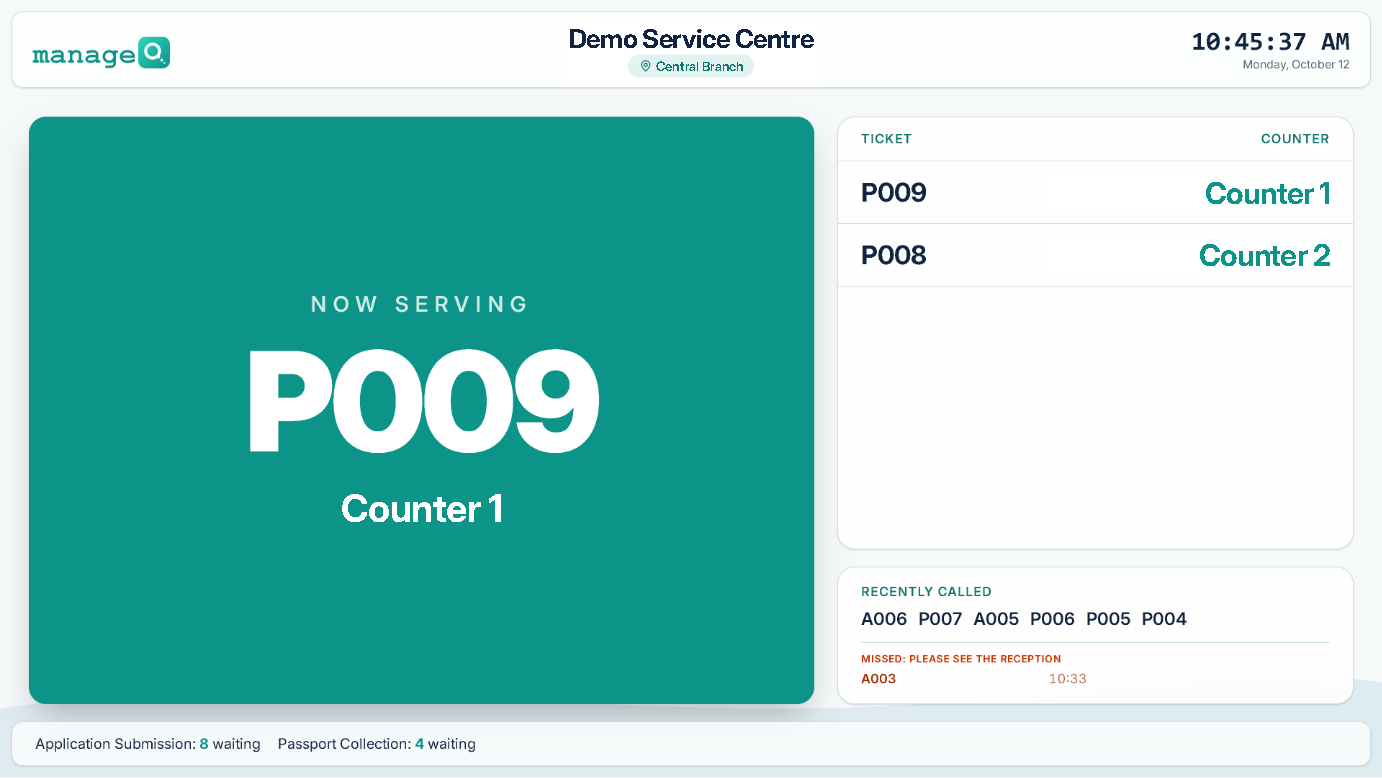
Token display: now serving P009 at Counter 1, the next tokens, recently called and a missed token
Appointment check-in

Bookings stay in your system. Arrivals run through manageQ.

Visitors with an appointment check in on arrival and join the same live queue as walk-ins.

  • Bookings come from your own system, or staff enter them
  • Visitors check in at the kiosk, by phone (QR) or at the counter
  • On-time visitors are placed by their slot; late ones queue as walk-ins
  • Bookings nobody checked in become no-shows 30 minutes after the slot, by default
  • Booking details are encrypted and, by default, deleted the day after
Messages

SMS, WhatsApp and e-mail, with consent

Visitors who give a mobile number or an e-mail can follow their token by message.

  • SMS, WhatsApp and e-mail through a messaging provider account (the customer’s own when self-hosted)
  • 4 events: token issued, turn near, called and served
  • Editable texts, instructions and a “Please bring” checklist of up to 15 items
  • A consent box on every form: opt-in or pre-ticked, set per organisation
  • STOP and START replies (SMS via Twilio, and WhatsApp), plus opt-outs recorded by staff
  • Delivery receipts, and read receipts on WhatsApp; message texts carry no personal data
Feedback & satisfaction

Know how each visit went

Visitors rate their visit after service, and low ratings reach someone who can follow up.

  • 1–5 stars, tags and an optional comment
  • Rate from the status page, by replying to the Served message, or at a feedback kiosk
  • Share of 4- and 5-star ratings by day, location, service, counter or staff
  • Low ratings flagged, with an e-mail alert and follow-up notes
  • Off until an organisation switches it on
Dashboards & reports

Live figures for every queue, and the tokens behind them

Managers see the day as it happens, compare it with before, and open any number to its tokens.

  • 3 dashboards (Executive, Overall status, Kiosk & eQueue), granted by role
  • Live every 15 s, plus instant updates when a token moves
  • Average wait with P90; today, yesterday and 7 days against the previous period
  • 30-day and 12-month trends
  • Every number opens its tokens, down to one token’s timeline
  • Wall view, CSV exports, the Counters & staff time report and walk-in against appointment figures
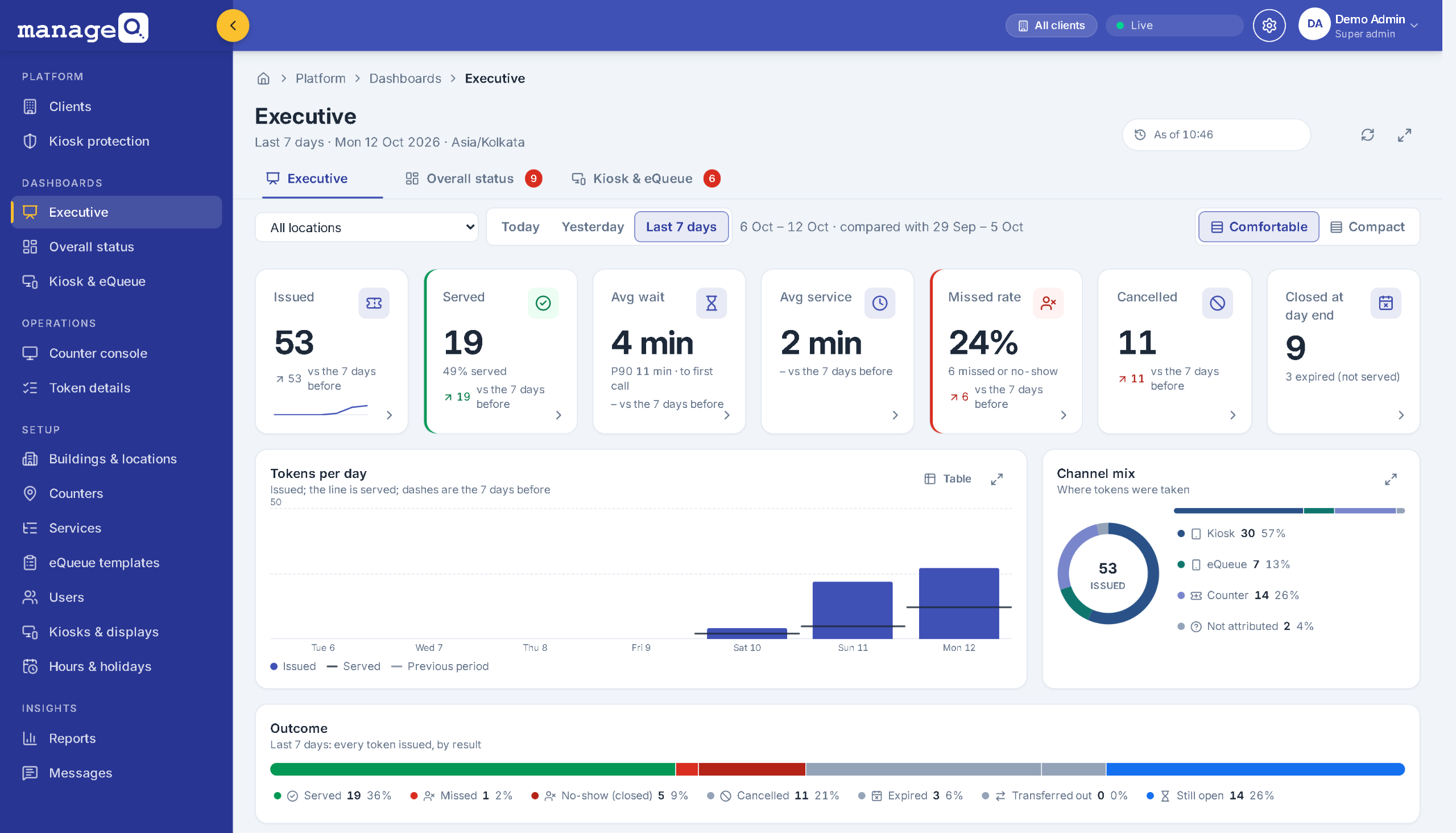
Executive dashboard for the last 7 days: tokens issued and served, average wait and service time, missed rate, tokens per day and channel mix
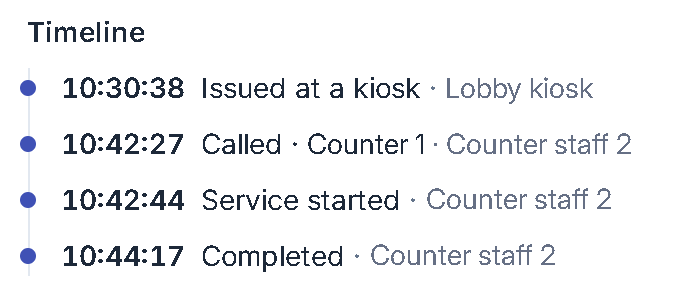
Token timeline: issued at a kiosk, called to Counter 1, service started and completed
Administration

One platform for many organisations and locations

Admins set up locations, counters, services, users and devices in the console. Nothing needs coding.

  • Many organisations on one platform, isolated on every request
  • Any number of locations, each with its own time zone, hours and holidays
  • Kiosks, displays and eQueue links managed remotely: health, pause and a new link
  • Custom roles and permissions, set by the platform administrator
  • An audit-log explorer with CSV export
  • A sign-in policy: sessions of 1–24 h and idle sign-out
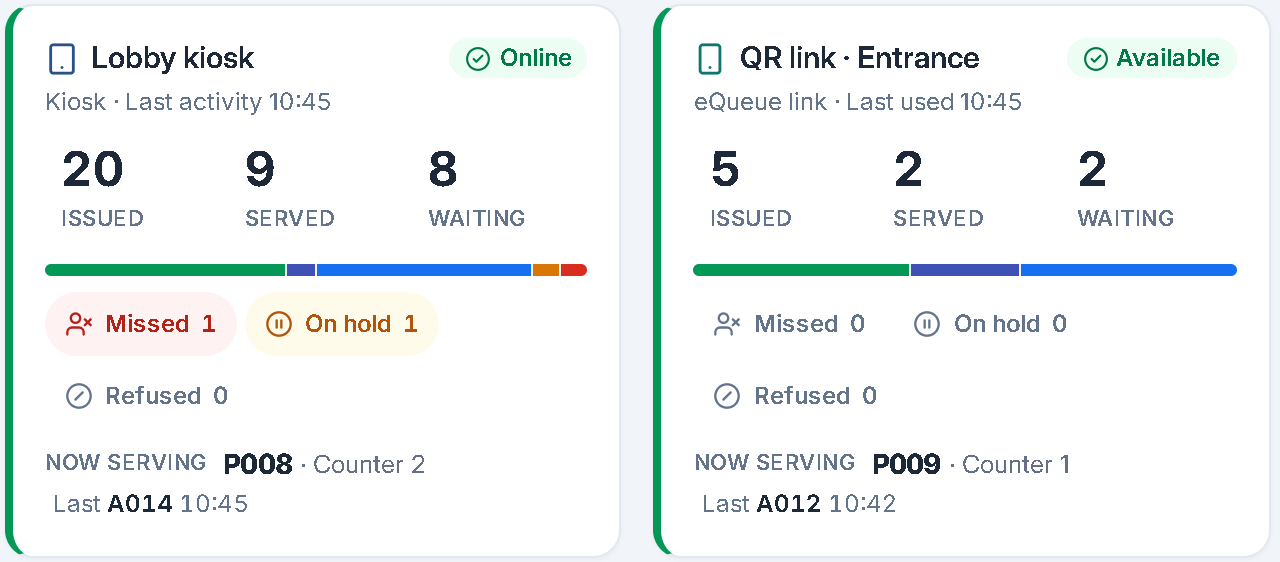
Device health tiles: a lobby kiosk online and a QR link available, each with tokens issued, served and waiting
Day-end closing

Every day closes itself

Tokens belong to their day. Whatever is still open when the day ends is settled by the system, with a reason on record.

  • Open tokens settle automatically at each location’s day end
  • Waiting tokens expire, called ones close as no-shows, and services in progress complete
  • At midnight, or a set time after closing
  • Nobody has to finish yesterday’s tokens, and reports stay clean
At day end: waiting or on-hold tokens expire, called tokens close as no-shows, tokens being served complete, missed tokens close as no-shows At day endWaiting / On holdExpiredCalled, not startedNo-showBeing servedCompleted (time capped)MissedNo-show Midnight, or closing time + grace
Kiosk protection & limits

Fair tokens for people, not scripts

Limits stop token hoarding, and kiosk protection pauses a device that sends far more than a person could.

  • Caps of 1–9999 tokens per day per kiosk or eQueue link, warning at 80 %
  • 1–10 open tokens per mobile number across a location
  • Scripted bursts paused automatically, with an admin review
  • A new link stops every copy of the old one
Normal use keeps going; a scripted burst pauses the kiosk for an admin review and a new link; a daily cap warns at 80 % and finishes for the day at 100 % Normal useScripted burstPaused Admin review New link80 % warning100 % · finished for today
Languages & accessibility

Customer screens and voice in six languages

Visitors pick their language on the kiosk and phone; displays can show two languages at once.

  • Customer screens and voice in English, Hindi, Telugu, Tamil, Arabic (right to left) and Russian
  • Offered per organisation: English only until an admin adds more
  • Voice uses the display PC’s installed voices
  • Admins translate their own service names, forms and instructions
  • Admin console in English, with light and dark themes
  • Status shown by colour, icon and word; every assistant chart has a table view

Customer screens and voice announcements in

  • English
  • हिन्दी
  • తెలుగు
  • தமிழ்
  • العربية
  • Русский

Roadmap

Coming soon

Coming next

  • Single sign-on & 2FA
  • SLA targets & alerts
  • OTP-verified mobile numbers
  • Scheduled report e-mails
  • Large-text, high-contrast kiosk mode
  • Token API keys & webhooks

Scope and timing to be confirmed.

See manageQ with your own queues

  1. Discovery call
  2. Live demo with your set-up
  3. Pilot at one location
  4. Roll out with guides for every role
Book a demo